Wednesday, 22 April 2015

Posting definitions vs Posting profile in Dynamics AX

In this post, i am going to describe what is the difference between Posting definitions and Posting profile in Dynamics AX.

Posting definitions
Posting profile
It is used when multiple offset, balanced ledger entries based on transaction types and accounts are needed
It is used when there is only one offset ledger entry is needed.
Posting definitions applies on the whole module. For example: If Accounts payable module is selected while creating posting definition then balancing or offset entries of that posting definition will be effective on the whole Accounts payable module.
Posting profile applies on the vendors and customers. Both vendors and customers has separate posting profile setup.
Posting definitions supersede Posting profile if Use posting definitions checkbox is checked on General ledger parameters form.
Path of this form is General ledger > Setup > General ledger parameters
Below is the screenshot of the form.
Posting profile can only be effective if 
Use posting definitions checkbox is unchecked on General ledger parameters form.
Path of this form is General ledger > Setup > General ledger parameters
Below is the screenshot of the form.


If Use posting definitions checkbox is unchecked and there is posting definition created but no posting profile created then posting definition will become effective
If Use posting definitions checkbox is checked and there is no posting definition created then posting profile will become effective

Posting profile will be usefull when each vendor and customer has separate sets of offset accounts used for their transactions.
Posting definition will be usefull when there is only one set of offset account used for their transaction.
Hope, you will understand the difference between posting definition and posting profile after reading this blog.

Happy Daxing!

How to stop specific customer for further transactions in AX?

In this post, i am going to describe how to stop specific customer for further transactions.
I am using COM demo data set here:
Go to Accounts receivable > Common > Customers > All customers


Select Customer RCUS000001
Click Edit or double click on the selected customer
Expand Credit and collections fast tab


The invoice and delivery on hold function has several below options:
No – No holds have been placed on the customer.
Invoice – No invoices can be posted for this customer.
All – The customer is on hold for all transaction types, including free text invoices, customer invoices, and payments.
Payment – This is invalid option for customer and cannot be selected.
Requisition – This is invalid option for customer and cannot be selected.
Never – The customer is never put on hold for inactivity.

I am selecting All option on customer RCUS000001 and doing General journal transaction against the customer RCUS000001 on General ledger module


You can see on the above screenshot that i cannot post General journal type transaction because the customer RCUS000001 is on hold.


Happy Daxing!

How to stop specific vendor for further transactions in AX?

In this post, i am going to describe how to stop specific vendor for further transactions.
I am using COM demo data set here:
Go to Accounts payable > Common > Vendors > All vendors
Click On hold button on action pane

The on hold function has several below options:
No – No holds have been placed on the vendor.
Invoice – No invoices can be posted for this vendor.
All – The vendor is on hold for all transaction types, including purchase requisitions, invoices, and payments.
Payment – No payments can be generated for this vendor.
Requisition – Only purchase requisitions can be created, but no other transactions.
Never – The vendor is never put on hold for inactivity.

If i select options other than No and Never then the Vendor is always active.
I can put Vendor on hold until a specific date and release it so that Vendor can be used for further transactions. This can be achieved by setting Vendor hold release date.
Vendor will become active if the system date is greater than or equal to Vendor release date irrespective of options selected other than No or Never.


If i checked Apply hold in all legal entities checkbox then on hold functionality will be applied on all the legal entities linked with each other on organizational hierarchy.

I am selecting All option on vendor PVND000001 and doing General journal transaction against the Vendor PVND000001 on General ledger module

I am going to post General journal against the vendor PVND000001 that is on hold.


You can see on the above screenshot that i cannot post General journal type transaction because the vendor PVND000001 is on hold.

Happy Daxing!

Wednesday, 22 October 2014

How to transfer budget from one ledger dimension to the other ledger dimension?

In this post, i am going to describe how to transfer budget from one ledger dimension to the other ledger dimension.
I am using COM data set here:
First allocate budget against ledger dimension from which budget will be transferred.
There has to be one source ledger dimension from which amounts will be go out and one destination ledger dimension on which amounts will be go in.
I am creating Budget register entries against the source ledger dimension in order to allocate the the budget.
You should have Budget model, budget code setup otherwise Budget register entries cannot be created
Go to Budgeting > Common > Budget register entries > All budget registries
Click New > Budget register entry button on the action pane
Select OPERATION as Budget model
Select OB as Budget code
Press CTRL + S
Click Add line button
Select Expense as Account Structure
Set Dimension value = 999-61101-120-101
Set Amount = 10000
Press CTRL + S (Budget check results should be marked as checked)
Click Update > Update budget balances button on action pane
Click Ok button
Budget register entries should be created successfully


Go to Budgeting > Common > Budget register entries > All budget registries
Click New > Budget register entry button on the action pane
Select OPERATION as Budget model
Select OB as Budget code
Press CTRL + S
Click Add line button
Select Expense as Account Structure
Set Dimension value = 999-62300-120-101
Set Amount = 1000
Press CTRL + S (Budget check results should be marked as checked)
Note that Budget Check results should be checked and Create transfer button should be enabled otherwise you cannot transfer budgets


Click Create transfer button
Press CTRL + S 
Set Amount = 1000 [Underneath 'To dimension values' field]
Click Add line button
Set From dimension values = 999-61101-120-101 [Source ledger dimension]
Set Amount = -1000 
Amount will be go out that's why negative amounts should be put in here otherwise budget cannot be transferred.
Amounts for source ledger dimension should be negative and Amounts for destination ledger dimension should be positive.


Click Update > Update budget balances button on action pane
Click Ok button
Two vouchers should be created for Transfer Budget register entry. One for source ledger dimension and other for destination ledger dimension.


Budget register created for Transfer budget shows how amounts are transferred from one ledger dimension to the other. 


This is posted budget register entry and you cannot make any amendments on this Budget register entry as the Budget register entry status is completed.
Source document of Budget register entry from which transfer budget is also linked to the transfer budget register entry shows above.


This is how budget is transferred from one ledger dimension to the other.
Hope, you learn from this post.

Happy Daxing!

Thursday, 28 August 2014

How to transfer Purchase orders to a new fiscal year?

In this post, i am going to describe how to transfer Purchase orders to a new fiscal year.
I am using COM data set here.
I am transferring the Purchase order created on Fiscal year 2014 to the next fiscal year 2015
Go to Accounts Payable > Common > Purchase Orders > All Purchase Orders
Click New > Purchase Order button on action pane
Set Vendor Account = PVND000001
Click Yes on AX message box
Click OK button
Click Add line button
Set Procurement Category = APPAREL AND LUGGAGE AND PERSONAL CARE PRODUCTS
Set Quantity = 1
Set Unit = Ea
Set Unit price = 10
Click Financials > Distribute amounts button
Set Ledger Account = 999-64500-120-101 [Set ledger dimension for which Budget Register Entries are already created. I will discuss Budget Register Entries in my next posts. This is the ledger dimension of Expense Account Structure as we are doing expense transaction (Purchase Order)]
Click Purchase tab on the top
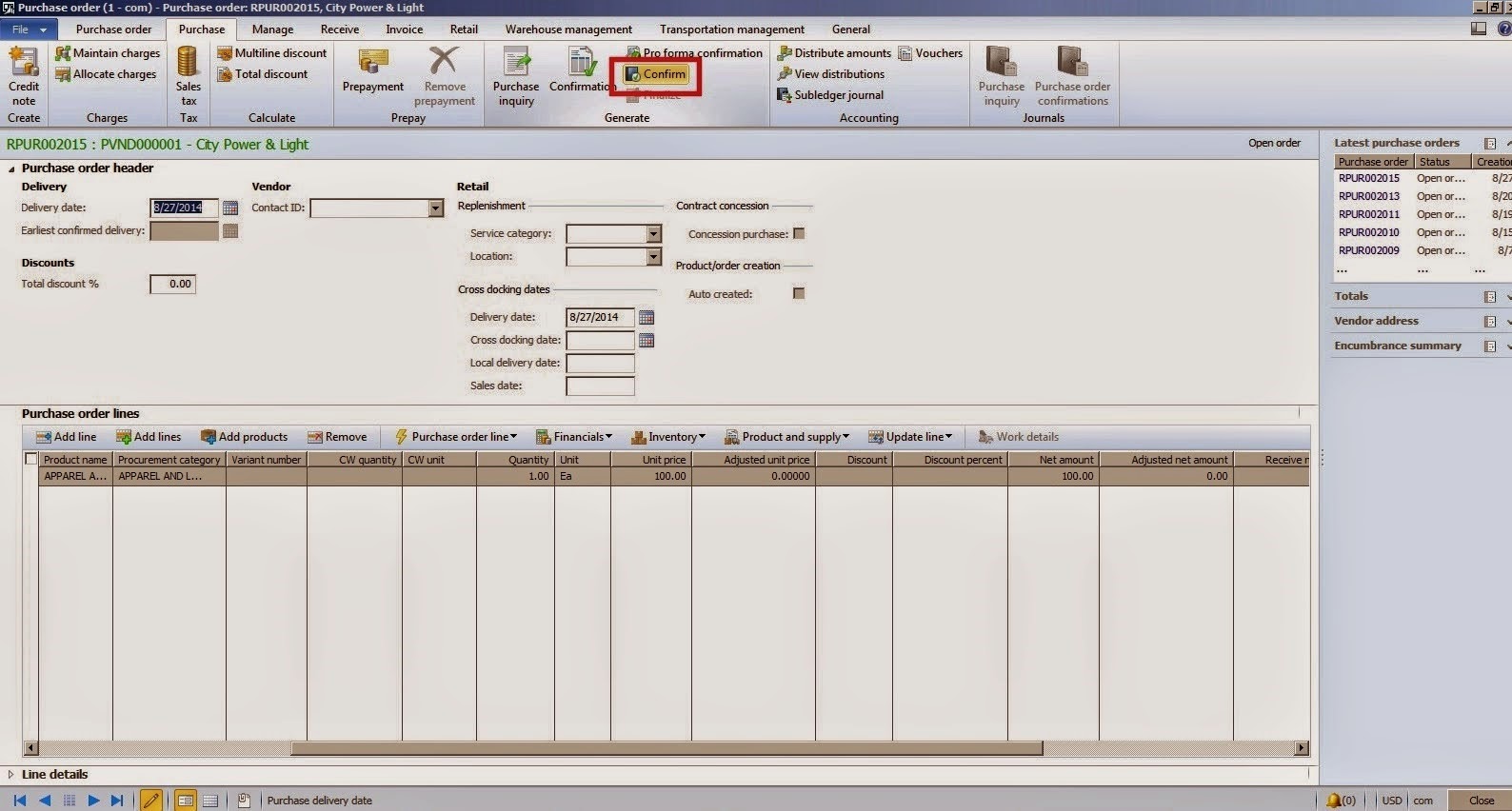
Click Confirm button under Generate section


Go to General Ledger > Periodic > Fiscal year close > Purchase order year -end process
Users can select one of the two year -end options depending on their needs:
Process and carry forward budget
Process and do not carry forward budget


Process and carry forward budget:
Process and carry forward budget means that Purchase order is transferred to the next fiscal year as well as Carry forward budget is also created against that particular Purchase order.
Process and do not carry forward budget:
Process and carry forward budget means that Purchase order is transferred to the next fiscal year but no Carry forward budget will be created. So, in order to consume the budget against that particular Purchase order therefore user will have to create the Budget register entries separately otherwise Purchase order cannot be confirmed if Budget Control configuration is turned on and activated.

I am selecting Process and carry forward budget for now.
Set Fiscal year to 2014 as i have done Purchase order transaction on the fiscal year 2014 as stated above.
Accounting date is populated as 12/31/2014 because we are doing Purchase order year -end process to close the current year end Purchase order transaction and open that particular Purchase order transaction on the next year that's why Accounting date is populated as 1/1/2015. We cannot change these parameters as all Closing and Opening parameters are totally dependent on the Fiscal year set on Calendar parameter.
Click Retrieve purchase orders button


Click OK button
Select the Purchase order that was created above.


Click Process
Click OK


Click OK
An info log message as shown in the screenshot below should be displayed


You can see in the above screenshot that Budget register entries are also created for the next fiscal year as well as current year Budget register entries are also updated.
Source document Purchase Order is also linked to both the Carry forward budget register entries as well as Original budget register entries as Purchase order consumes the budget register entries.


Next year Carry forward budget screenshot:


Current year Original budget screenshot


Carry forward budget on the accounting date of 1/1/2015 with 100 expense amount is created because i created Purchase order of 100 and then ran Purchase order year end process for that Purchase order.
Original budget was fully consumed of the current fiscal year with the -100 expense amount in order to balance the expense budget amount of Carry forward budget with the Original budget. So, the net expense amount of sum of expense amounts of Carry forward budget and the Original budget will be zero as we have fully consumed the budget.
PO year end process closed out the current fiscal year Budget register entry on the accounting date 12/31/2014 which is a closing period and opened Carry forward budget register entry on the next fiscal year's first period on the accounting date 1/1/2015

Happy Daxing!

Friday, 22 August 2014

How Sub Ledger Journal Entries Transfer works in Dynamics AX?

Sub Ledger Journal Entries Transfer
Subledger journal entries transfer means that additional performance optimization and summarization rules can be defined for the transfer of subledger journal entries to General ledger. The transfer process can be defined so that it occurs synchronously or asynchronously. During the transfer process, a user has the option to summarize the subledger journal entries for similar source documents to reduce the amount of data in General ledger. User also has the option to select particular source documents like Free text invoices, Purchase Orders, Purchase requisitions, Vendor Invoices etc. to reduce the amount of data in General ledger.
The path of the form is General ledger > Setup > General ledger parameters


There are two rule type on which Batch transfer rules can be applied:
Document
Company

By selecting Company rule type then it applies to all the source documents that are linked to the particular legal entity and by selecting Document then it applies to the specific source documents.

There are three types of transfer mode:
Scheduled batch
Synchronous
Asynchronous

Scheduled batch:

It will run within the batch jobs with a scheduled interval: E.g. every 10 minutes or once a day or perhaps once a week.
Synchronous:
It will execute from within the posting process started by the user itself. For example: when an invoice is posted, the posting logic will also execute posting the subledger lines. This is from within the post task the user started.
Ascynchronous:
Posting process will only create the document and subledger lines from the client process. Then after it is finished the server thread will pick it up as soon as possible.
The asynchronous method is a thread on the server which will pick up immediately after creating the subledger entries.
Advantage: Client machine will be earlier ready and the user can continue with other tasks.

Summarized entries can only be applied for Scheduled batch and Asynchronous batch transfer mode because in synchronous transfer mode, transactions cannot be posted in summary or detail whereas in Scheduled batch and Asynchronous, transactions can be posted in summary or detail.

How Trial balance works in Dynamics AX?

What is Trial Balance?
The list of ledger accounts and their balances at a given time.
Typically generated at the end of an accounting period.
Debits must equal credits.
Does not prove that all transactions have been recorded or that the general ledger is correct.

Trial balance list page screenshot of Dynamics AX
General Ledger > Common > Trial balance


Debit: 
Debits are recorded against the particular account on the trial balance list page when there is debit transaction done against the particular account.
Transactions can be done from General Journal form etc
Entries to the left side of the account.
Amounts that are owned by you or belongs to you.
Typically increases assets and expenses.
Credit:
Credits are recorded against the particular account on the trial balance list page when there is credit transaction done against the particular account.
Transactions can be done from General Journal form etc
Entries to the right side of the account
Amounts that are owed to others or belongs to others
Typically increases liabilities, equity and revenues
Opening balance:
Closing balance of the previous day.
Formula: 
Opening balance = Beginning balance of  today's date - 1
Closing balance:
Closing balance is the ending balance of the current day.
Formula:
Closing balance = Beginning balance + (Debit - Credit) 

Happy Daxing !